- Please look at the page 'How to Upload an Image'
- Steps 1-5 are the exact same for the uploading of an image and the uploading of a document such as a .PDF file or an Excel file.
- The documents must be given a name, but the resize option is irrelevant for documents.
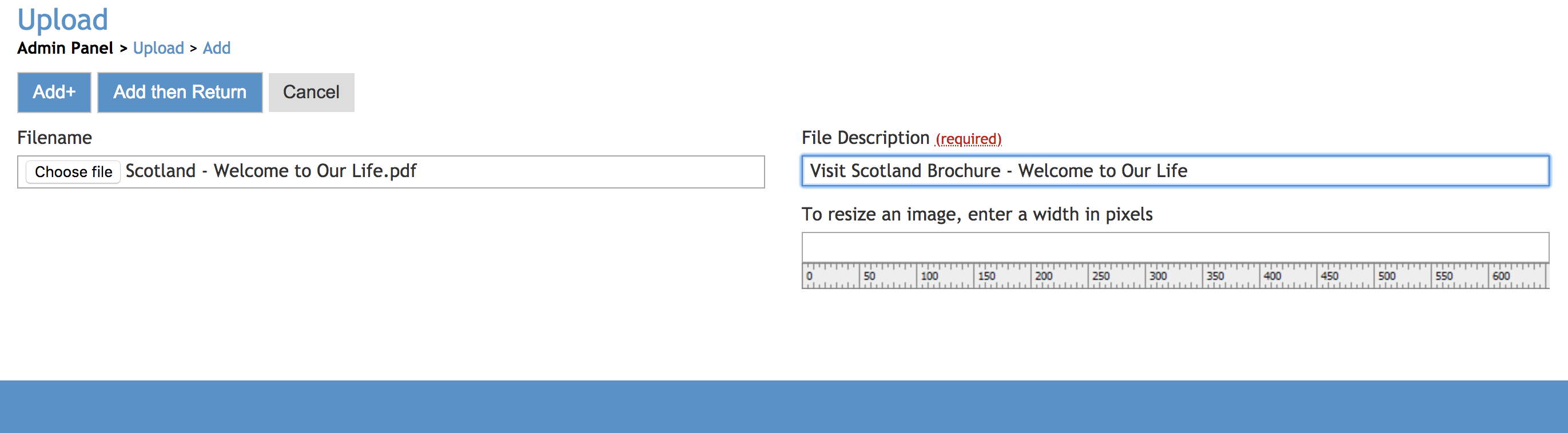
- Step 4: When editing the desired page, click in the content box. Select the highlighted option - 'Uploads', this is where you will find all your uploads sorted into file type.
- Step 5: Select PDF in this case, as that is the file type we are after.
- Step 6: Select the intended PDF file, doing so will insert a link to the file with the same title as you gave the upload. (as seen below)
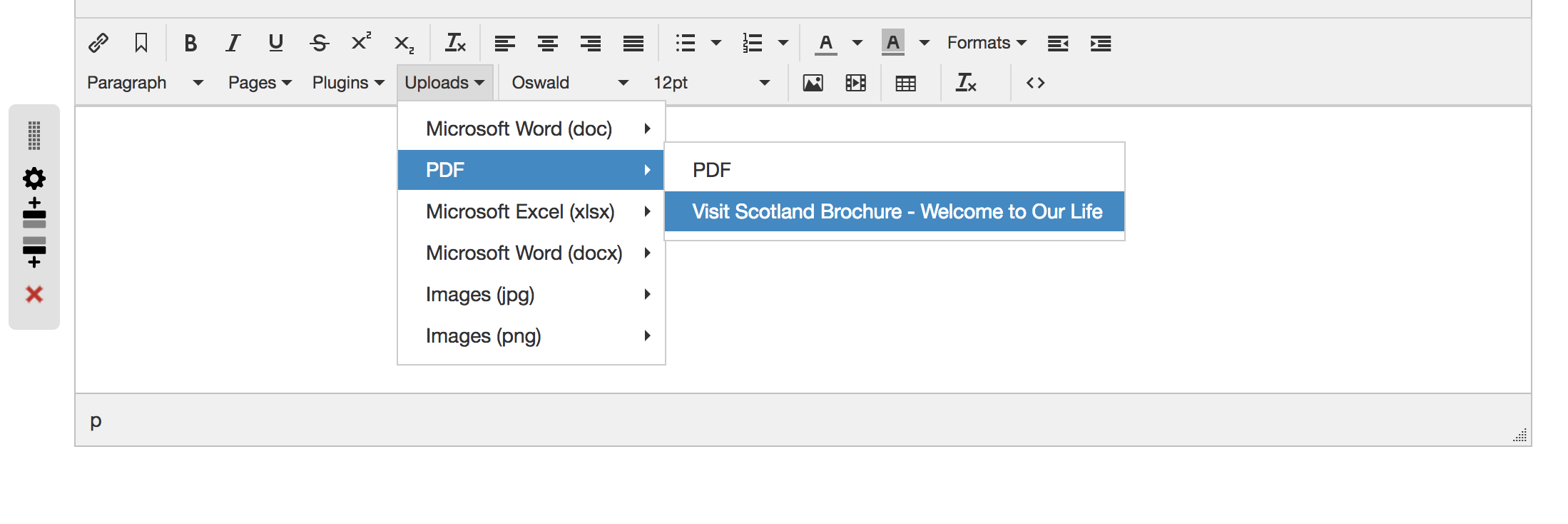
- The document can be accessed by clicking on the link below, which is the name of the document and by default the words of the link - HOWEVER, any words can be made to be the link by highlighting them and repeating the selection process for the PDF, like so!
In addition to being able to insert the link to documents into any words, or use the title of the document itself, you are also able to easily make an image a link to the document.
This is done by:
- Uploading your desired image (We will use the puppy again)
- Inserting the image to the page.
- Highlighting the image by right-clicking on it.
- Repeat the selection process for the PDF, and select the document whilst the image is highlighted.
- The image will now be the link to document, as you can see by clicking on this fluffy dog.